Editing a long YouTube video involves more than cutting clips together. A single recording can contain repeated takes, long pauses, false starts, unused sections, B-roll, and hours of footage that need to be reviewed before the edit takes shape.
AI editing tools can reduce some of this workload by helping with footage analysis, transcript editing, take selection, cleanup, captions, and rough-cut assembly. However, they differ in how much automation they provide and how much control they leave with the editor.
Here are five AI video editing tools worth considering for long YouTube videos, along with where each fits into a practical editing workflow.
What to Look for in an AI Video Editor for YouTube
Long-form editing requires more than basic trimming. When comparing tools, consider:
- Footage analysis: Can the tool help find useful clips across long recordings?
- Rough-cut assembly: Can it turn raw footage into a workable first timeline?
- Timeline control: Can you manually refine the AI-generated edit?
- Transcript editing: Useful for interviews, tutorials, podcasts, and talking-head videos.
- Audio and visual tools: Look for cleanup, captions, color, and other finishing features.
- Repurposing: Can you create shorter versions from the finished long-form video?
The most useful workflow is usually one where AI handles repetitive execution while the editor remains responsible for the story and final decisions.
1. Invideo Editor
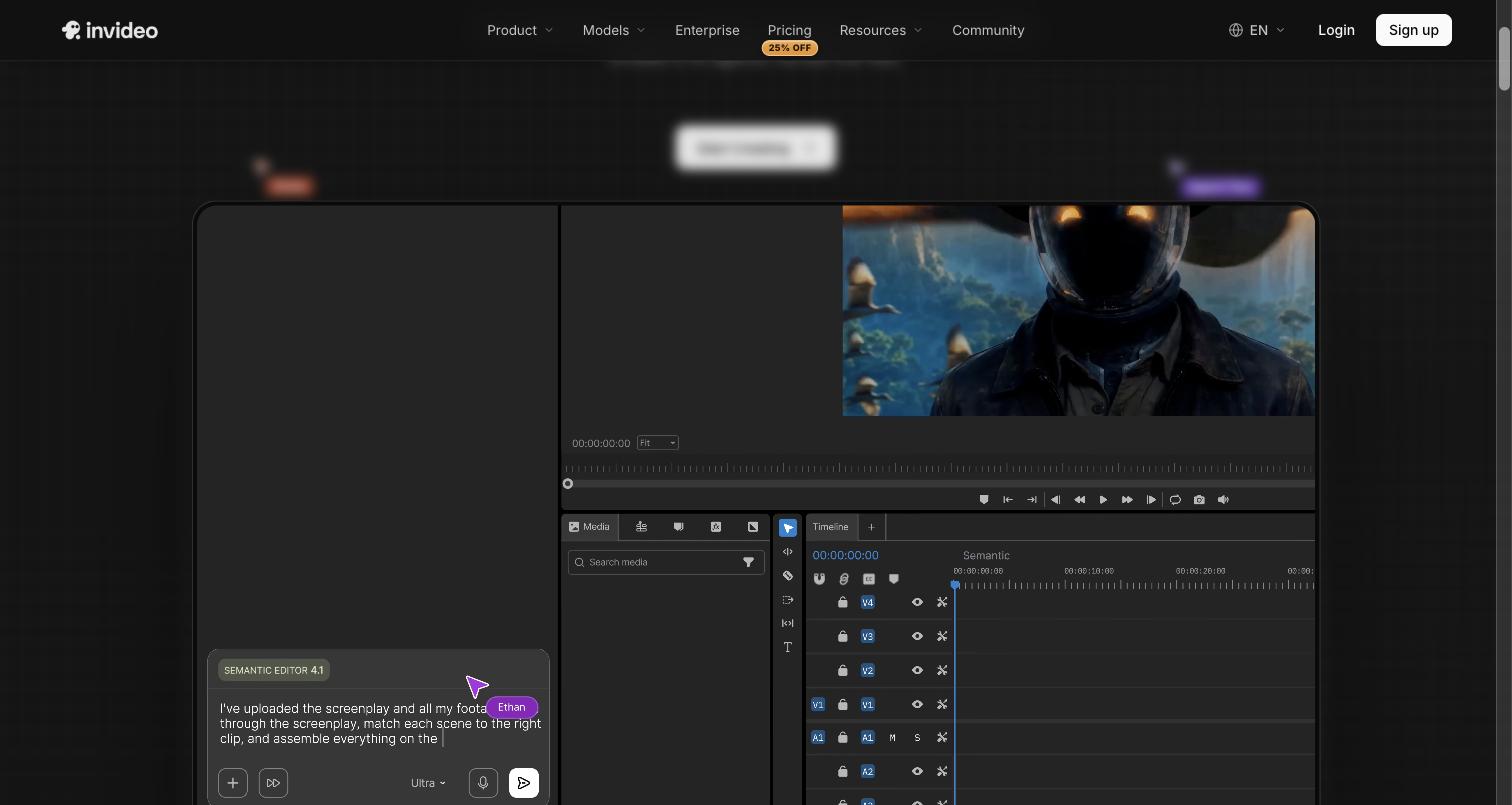
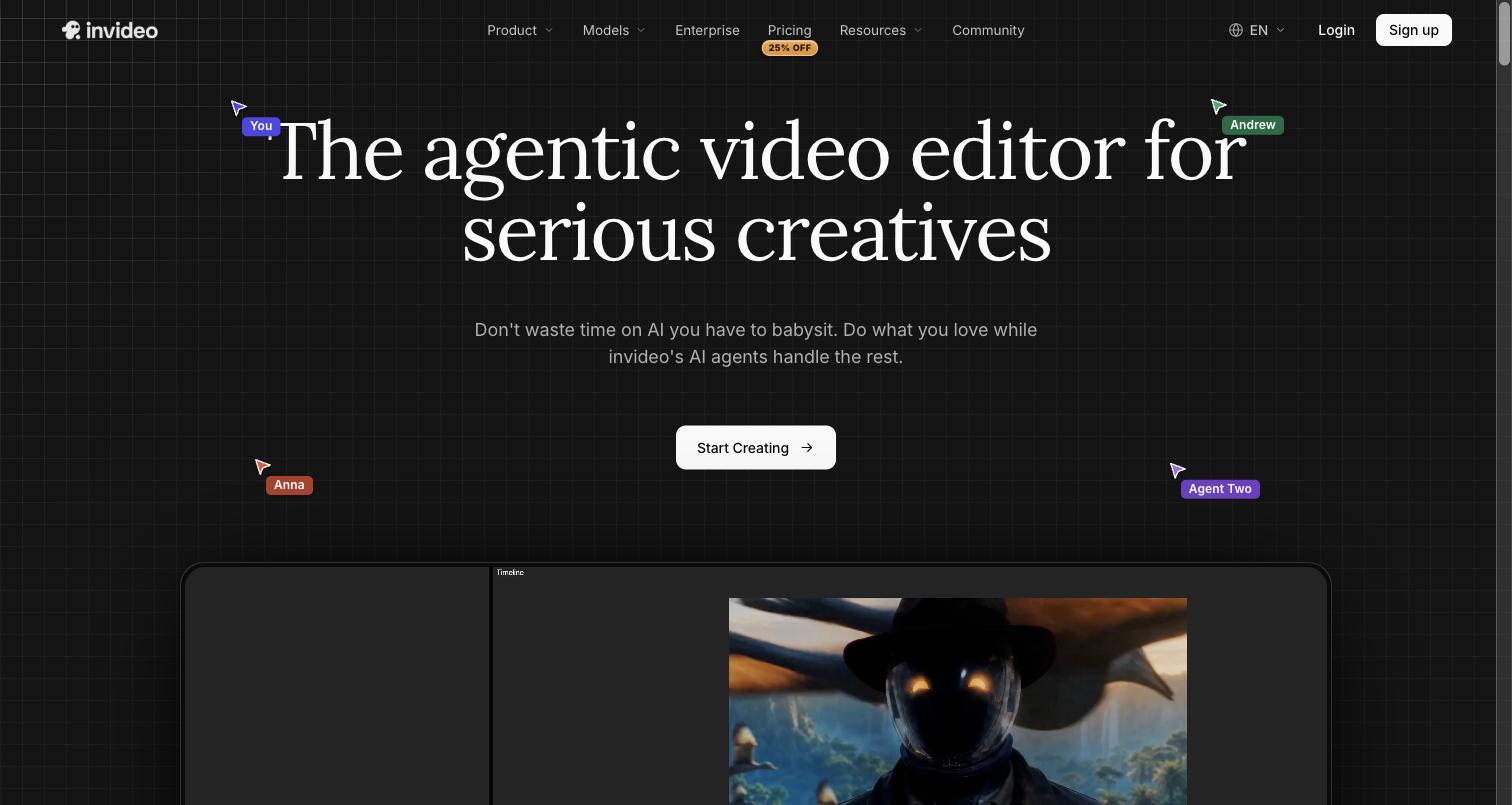
Invideo editor uses AI editing agents that can work directly with uploaded footage and an editable timeline. Instead of only automating individual tasks, the agent can help turn raw footage into a usable first cut.
You can upload your footage, optionally add a script or transcript, and describe how you want the base cut assembled. The AI agent can review the material, select usable takes, remove repetition and filler, and place clips on the timeline.
This can be useful for long talking-head recordings with multiple takes or multicam projects where reviewing every angle manually takes time. The agent can also help sync multicam footage and create a layered starting point that you can continue editing.
Invideo editor also supports later stages of editing, including captions, audio adjustments, cutdowns, localization, and visual finishing. For color work, you can describe a desired look or provide a reference image, then refine the result using controls such as color wheels, curves, temperature, tint, and saturation.
The timeline remains editable, so the AI-generated assembly is only a starting point. You can replace takes, adjust pacing, search through footage, and make your own creative decisions.
Why it stands out: Invideo editor is useful when reviewing footage and building the first usable timeline are major bottlenecks. It combines AI-assisted footage analysis with timeline-based editing rather than treating the AI output as a finished video.
2. Clipchamp
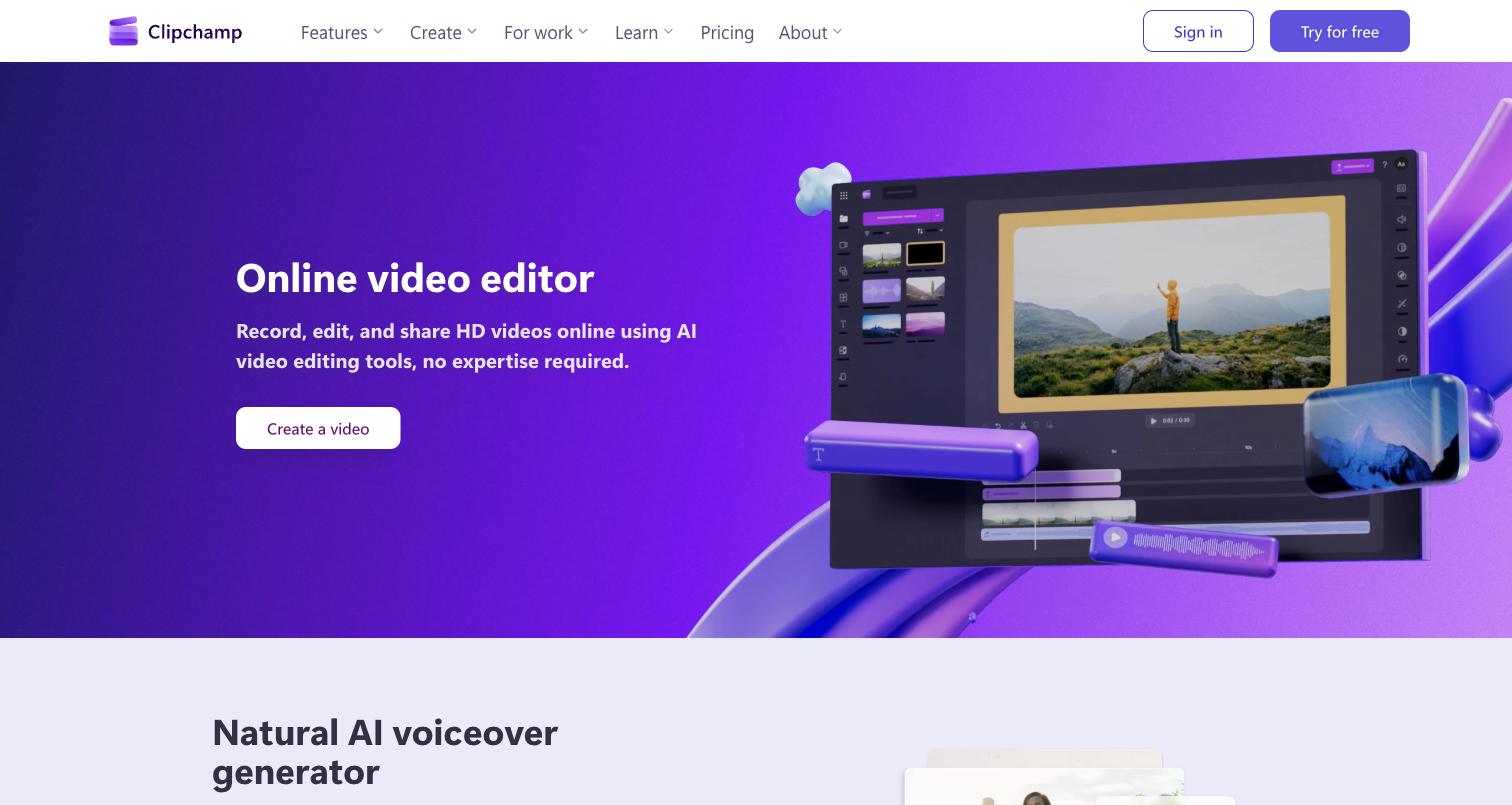
Clipchamp is a browser-based video editor built around an accessible editing workflow. It supports common tasks such as trimming, arranging clips, adding titles, captions, transitions, and music.
For long YouTube videos, it can work well for tutorials, presentations, screen recordings, commentary, and talking-head content that does not require an especially complex post-production setup.
Its browser-based workflow also makes it convenient for creators who want to edit without installing a traditional desktop application. AI-assisted features can help with selected production tasks while the timeline provides control over the final arrangement.
More demanding projects involving complex multicam editing, advanced color work, or detailed audio post-production may require a more specialized editor.
Why it stands out: Clipchamp keeps long-form editing relatively straightforward and accessible for creators producing conventional YouTube content.
3. VEED
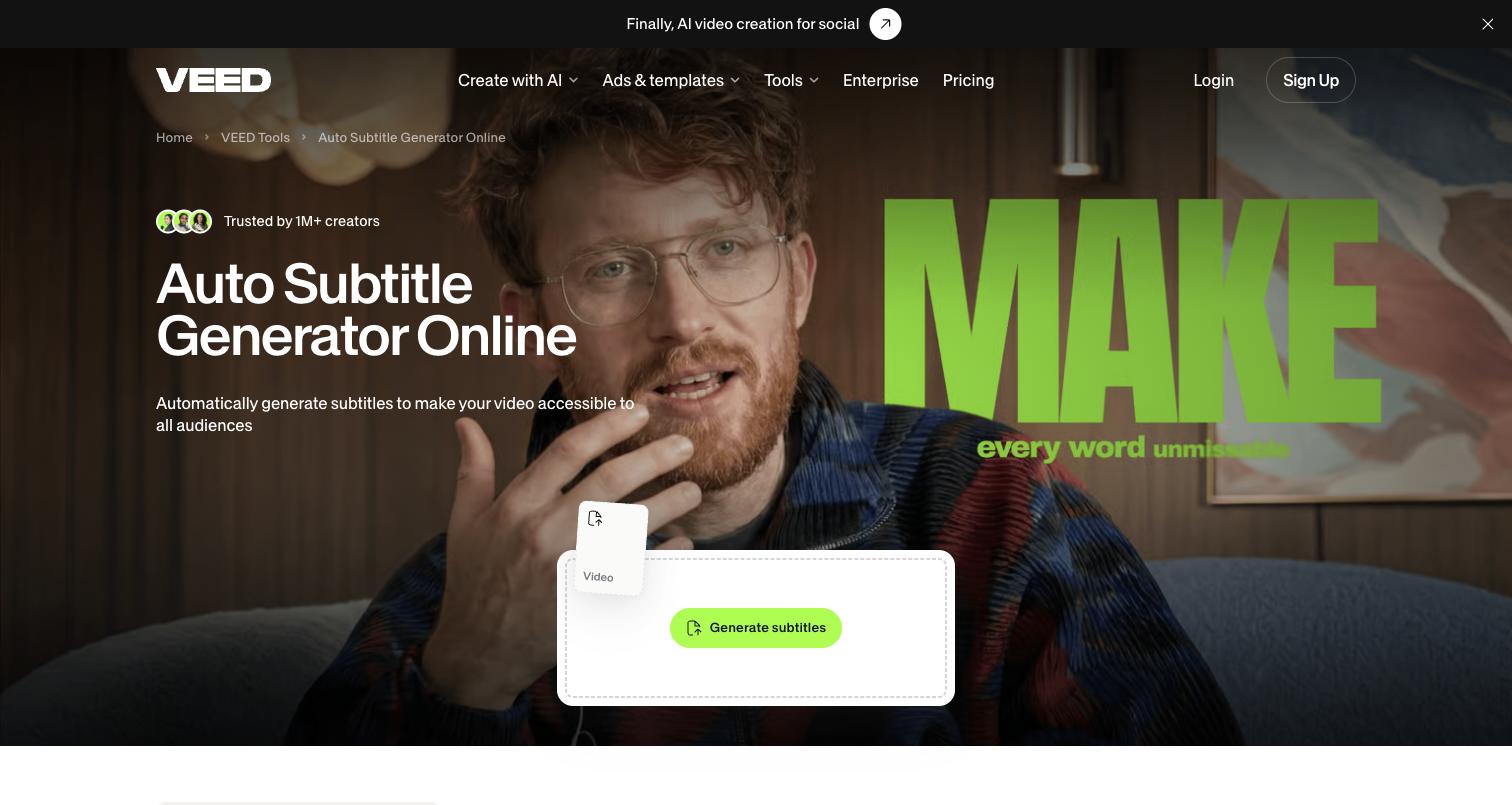
VEED is a browser-based editor focused on online video production. Its AI-assisted features include transcription, subtitles, translation, audio-related tools, and other content creation functions.
These features can be useful for long videos built around spoken content. Interviews, webinars, podcasts, tutorials, and educational videos often require significant work on transcripts and captions, making these tools useful during post-production.
VEED can also support workflows where content needs to be localized for different audiences. Instead of treating captions and translations as completely separate tasks, creators can incorporate them into the editing process.
For highly complex productions, however, editors may need deeper controls for multicam editing, detailed color grading, or professional audio work.
Why it stands out: VEED is particularly useful for long-form, dialogue-heavy content where transcription, captions, translation, and online publishing are important parts of the workflow.
4. Final Cut Pro
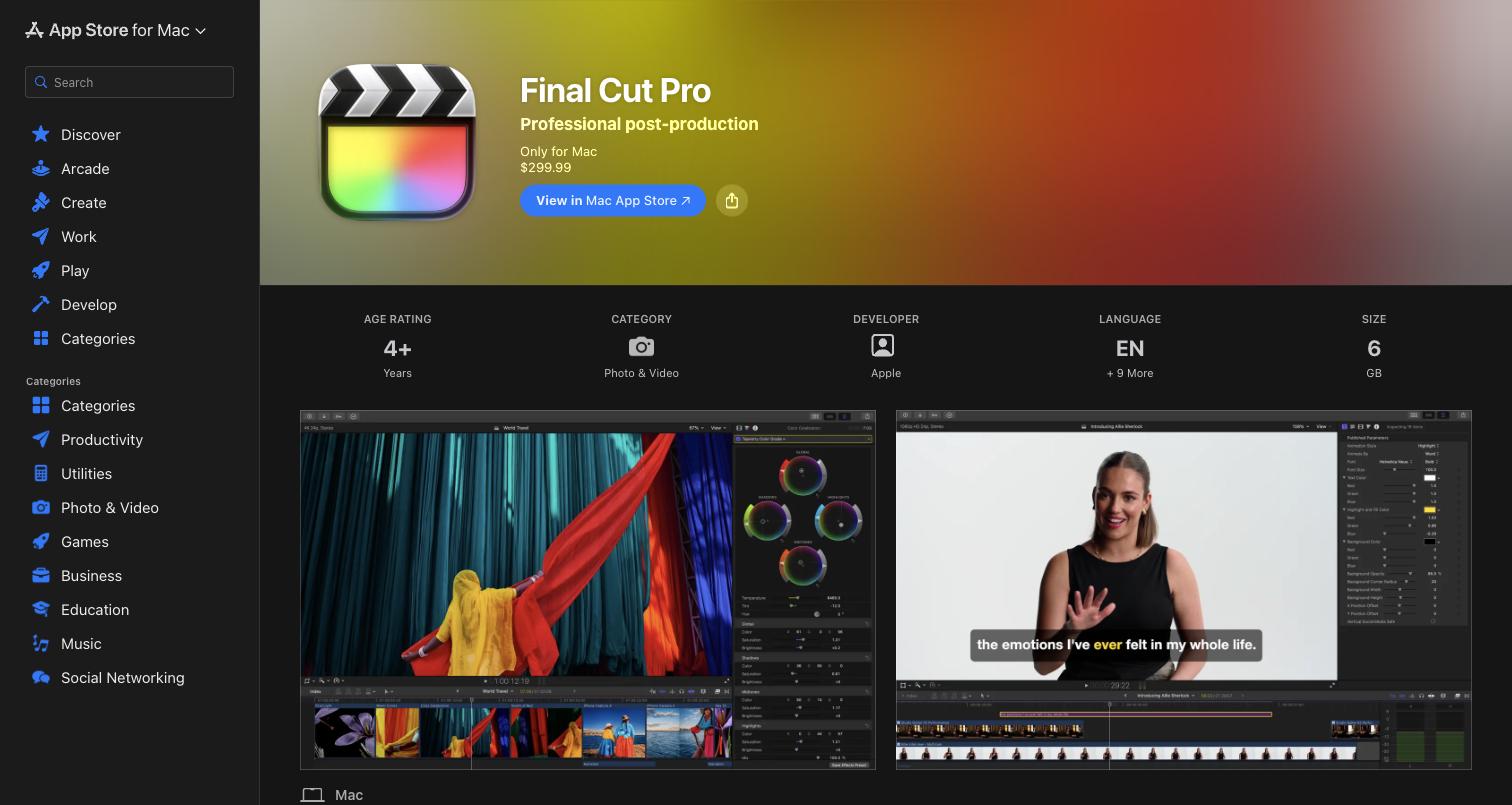
Final Cut Pro takes a traditional professional editing approach, with a detailed timeline and extensive control over the structure and finishing of a project.
For long YouTube videos, it can handle multicam footage, extensive B-roll, layered audio, graphics, effects, and detailed pacing decisions. Editors can organize large projects and refine individual cuts without relying on automated assembly.
Machine-learning-assisted features can help with selected tasks, but the main workflow remains centered on the professional timeline. This makes it suitable for creators who already have an established editing process and need detailed control over every part of the video.
The tradeoff is that more of the footage review, take selection, and initial assembly remains with the editor.
Why it stands out: Final Cut Pro offers detailed timeline control for creators producing complex long-form videos where manual editorial decisions are central to the workflow.
5. Movavi Video Editor
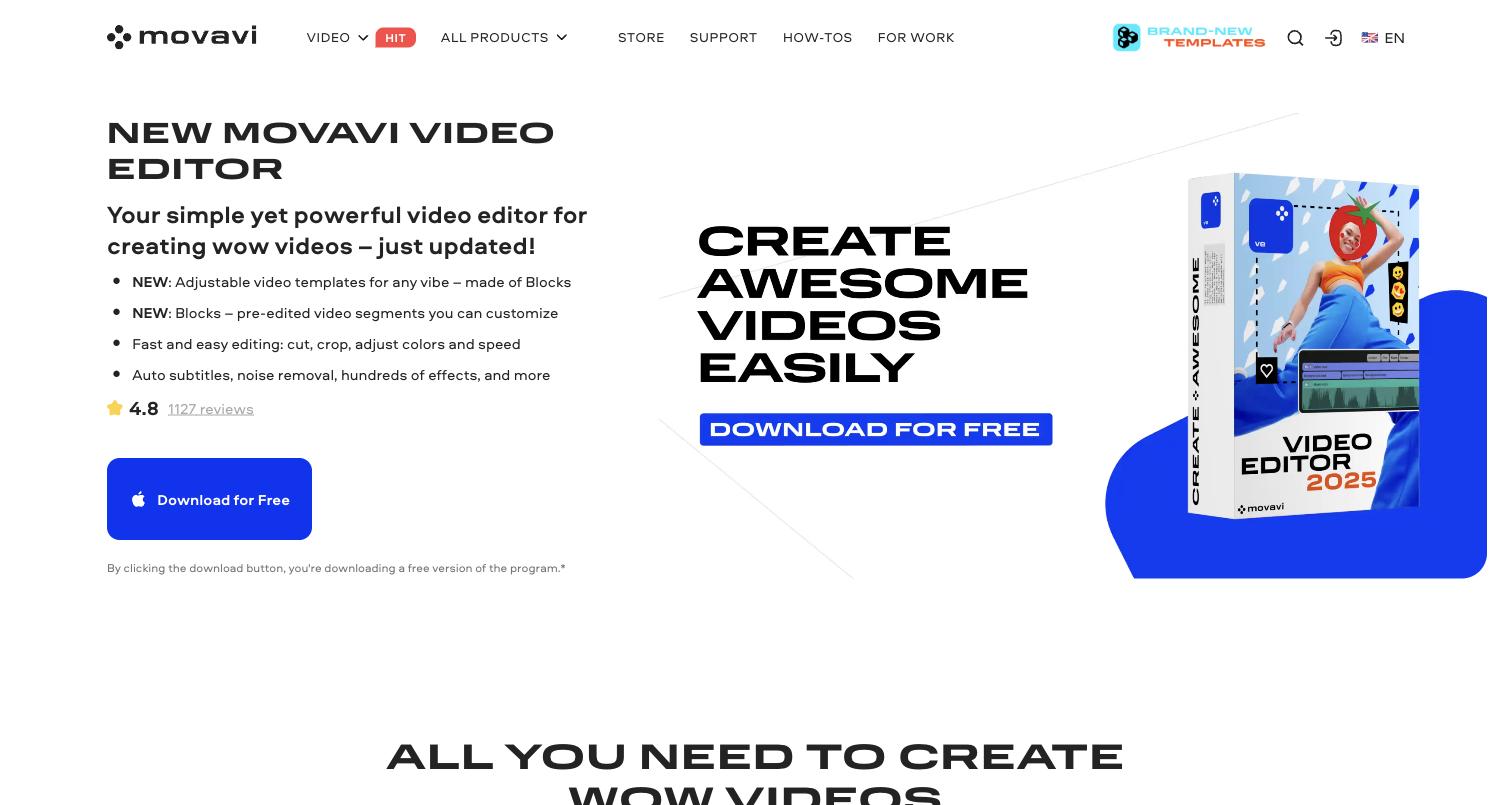
Movavi Video Editor is a desktop editing tool designed to make common video production tasks accessible. It supports trimming, clip arrangement, titles, transitions, audio, and visual adjustments, along with AI-assisted features for selected tasks.
For YouTube creators, it can work well for tutorials, reviews, commentary, vlogs, and similar formats that do not require an extensive professional post-production setup.
Its straightforward approach can make it easier for creators to move beyond basic editing tools. However, projects involving complex multicam workflows, advanced color grading, or detailed audio post-production may require a more specialized editor.
Why it stands out: Movavi Video Editor offers an accessible desktop workflow for creators who want more editing control without the complexity of a full professional post-production environment.
How to Choose the Right Tool for Long YouTube Videos
The right editor depends on where your current workflow takes the most time.
If you spend hours reviewing footage
Prioritize tools that can analyze footage, search recordings, identify useful takes, and help create an initial timeline. AI-assisted assembly can make a significant difference when raw footage is the main bottleneck.
If you create interviews and tutorials
Transcript editing, captions, dialogue cleanup, and content search become especially useful. These features can reduce the manual work involved in dialogue-heavy projects.
If you produce complex videos
Look for strong multicam support, detailed timeline controls, audio tools, color correction, B-roll management, and graphics. A professional editor may be more suitable when the finishing process requires precise control.
If you repurpose long videos
Consider tools that make it easier to create cutdowns, captions, localized versions, and social clips. A long YouTube video can become the source for several other pieces of content.
A Practical AI Workflow for Long YouTube Videos
AI works best when it reduces repetitive work without removing editorial control.
1. Review and organize the footage. Identify the main topics, takes, camera angles, and useful B-roll.
2. Create a first cut. Use AI to find relevant sections, remove obvious repetition, compare takes, and assemble a rough timeline.
3. Make the creative decisions. Review the timeline yourself. Change the order, adjust pacing, select different takes, and shape the story.
4. Finish the video. Use AI assistance for captions, audio cleanup, localization, color adjustments, and alternate versions where appropriate.
5. Watch the complete edit. Check pacing, continuity, audio, captions, and visual consistency before publishing.
Final Takeaway
Long YouTube videos combine creative editing with a significant amount of repetitive work. AI can help most when it takes care of that execution while leaving the editor in control of the timeline and final creative decisions.
Invideo editor focuses on AI-assisted footage review and timeline assembly, while Clipchamp and VEED provide accessible browser-based workflows. Final Cut Pro offers detailed professional editing control, and Movavi Video Editor provides a simpler desktop approach.
The best choice depends on your footage, editing style, production requirements, and the part of your current workflow that consumes the most time.