Professional video editing involves more than putting clips on a timeline. Editors often spend hours reviewing footage, finding usable takes, removing repetition, cleaning audio, matching shots, grading color, and creating different versions for different platforms.
AI video editors can reduce some of this repetitive work, but they differ considerably in how they approach it. Some focus on short-form content, some use transcripts as the main editing interface, while others combine AI assistance with a traditional professional timeline.
This guide compares six AI video editors based on their editing workflows, AI capabilities, level of creative control, and the types of projects they are suited to.
What Makes an AI Video Editor Useful for Professional Work?
The most useful AI editing tools do more than apply automatic effects. They can understand footage, find specific moments, assist with rough cuts, remove unwanted sections, and speed up repetitive post-production tasks.
Creative control is just as important. A professional workflow still requires decisions about performance, pacing, shot selection, sound, color, and visual continuity. An AI editor should therefore make its work editable rather than hiding the process behind a finished output.
Features such as semantic search, transcript-based editing, multicam support, automated assembly, color correction, audio processing, and versioning can all be valuable depending on the project.
1. Invideo Editor
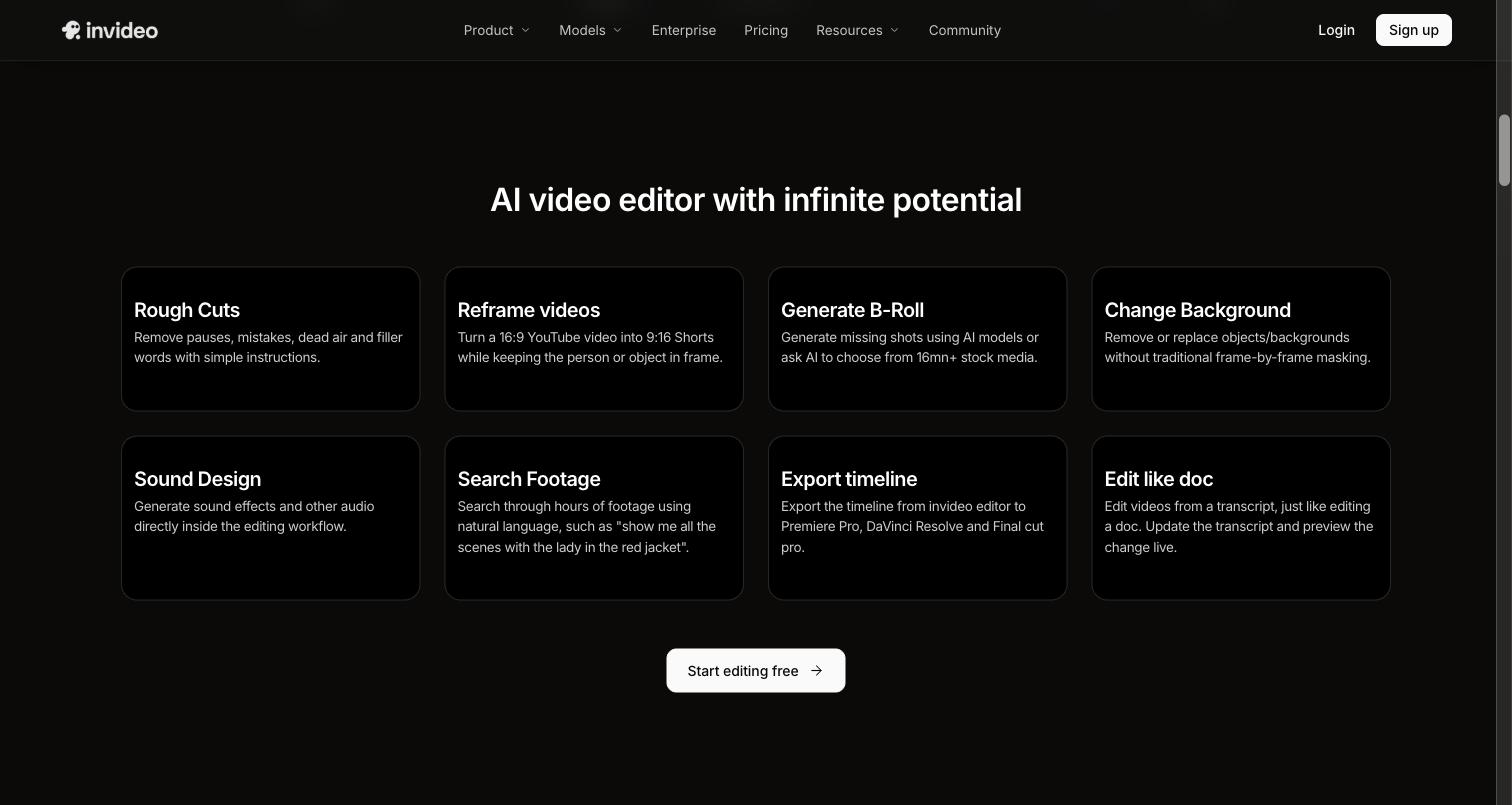
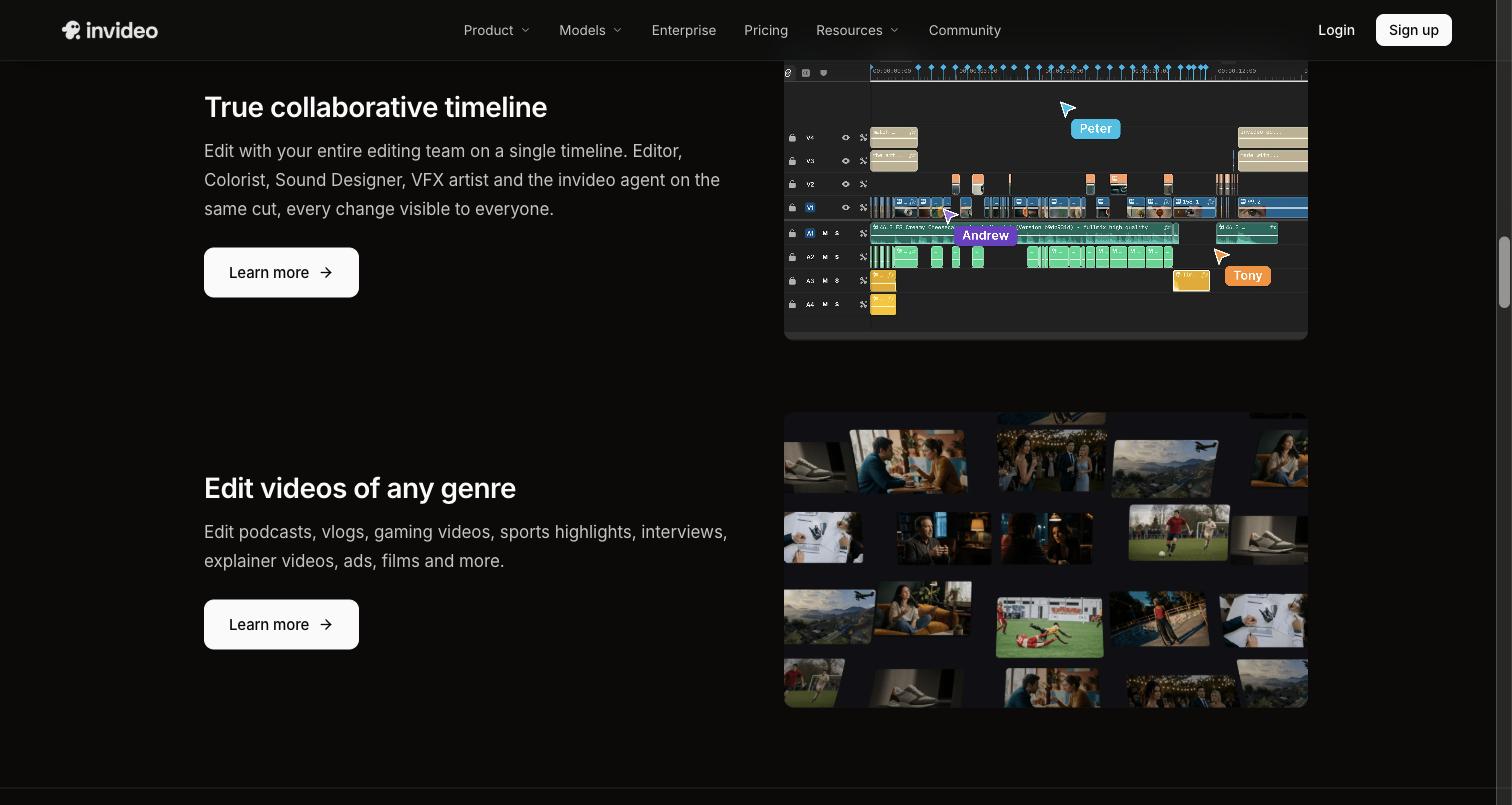
Invideo editor is an AI-powered video editor that combines AI editing agents with a professional, editable timeline. Its main focus is reducing the repetitive work involved in turning raw footage into a usable edit while allowing the editor to review and change the result.
You can upload footage, add a script or transcript when available, and describe the type of base cut you want. The editing agent can review the material, identify usable takes, remove repetition and filler, and assemble the selected footage directly on the timeline. It can also work with scripted and unscripted single-camera footage, multicam material, music-led projects, and generated media.
The workflow continues after the initial assembly. Editors can search footage using descriptions, restructure sequences, adjust pacing, create cut-downs, and keep refining the timeline manually. This is useful for projects where AI can handle repetitive execution but the editor still needs control over the final cut.
Color work is also part of the editing workflow. Editors can describe a desired look to the AI agent or provide a reference image, then refine the result using color wheels, exposure and contrast controls, temperature, tint, saturation, vibrance, curves, LUTs, qualifiers, and waveform scopes. This gives editors a way to combine AI-assisted grading with manual color decisions inside the same project.
2. Adobe Premiere Pro
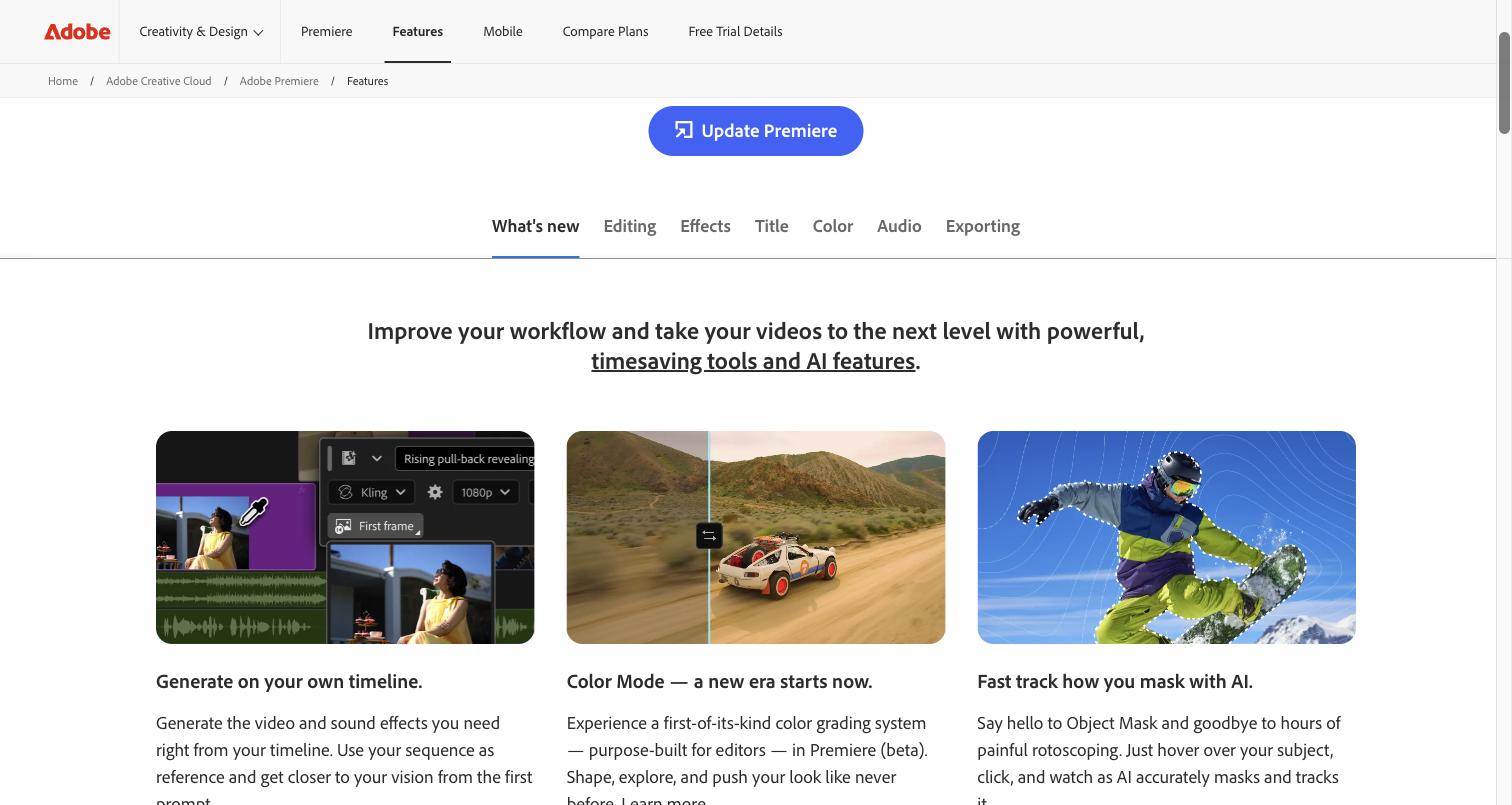
Adobe Premiere Pro combines traditional timeline editing with AI-assisted tools for professional post-production. It is designed for editors who need detailed control over sequences while using automation to speed up specific parts of the workflow.
Its AI capabilities can assist with tasks such as transcription, searching through content, masking, reframing, and other editing operations. These features can reduce the time spent on repetitive work without changing the fundamental timeline-based editing process.
Premiere Pro also supports complex video and audio sequences, effects, transitions, color workflows, and a broad range of professional media formats. Editors can move between automated assistance and manual adjustments depending on the requirements of the project.
It can be particularly useful for production teams already using Adobe’s wider creative ecosystem. The large number of tools can take time to learn, but that depth also gives experienced editors considerable control over how their projects are assembled and finished.
3. DaVinci Resolve
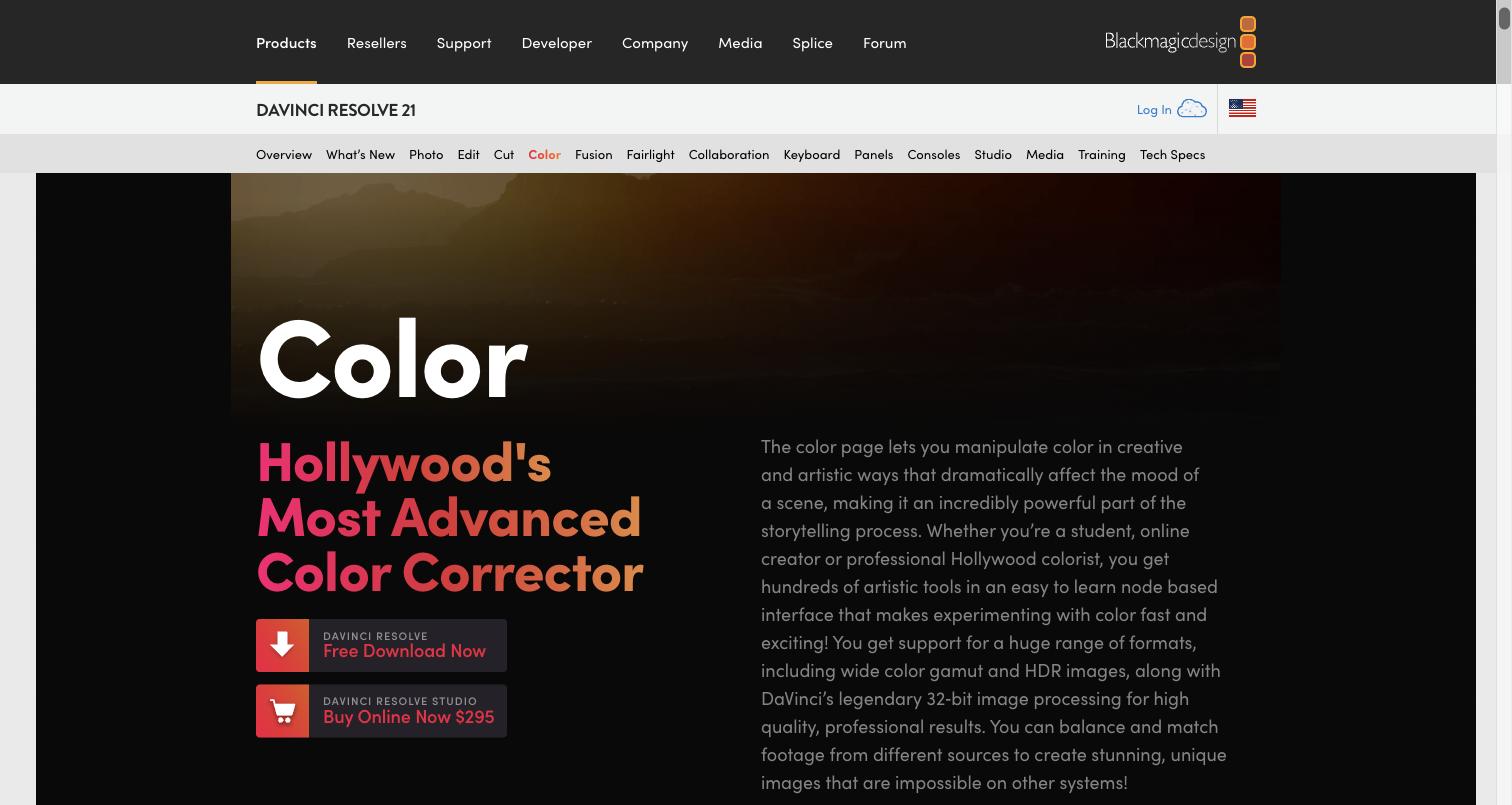
DaVinci Resolve brings editing, color grading, visual effects, motion graphics, and audio post-production into a single application. It is particularly relevant for professional projects where detailed finishing and color work are important parts of the workflow.
Its AI-assisted features can help with tasks such as transcription, object tracking, masking, and other editing operations. These tools can reduce repetitive work while leaving the underlying project available for manual editing.
Color grading is one of Resolve’s most established capabilities. Editors and colorists can use nodes, curves, scopes, tracking, secondary corrections, and detailed tonal controls to create and match looks across a project.
The application is suited to projects that require a broad post-production environment rather than a simple editing workflow. Its depth can also mean a steeper learning curve for users who are new to professional video editing.
4. CapCut
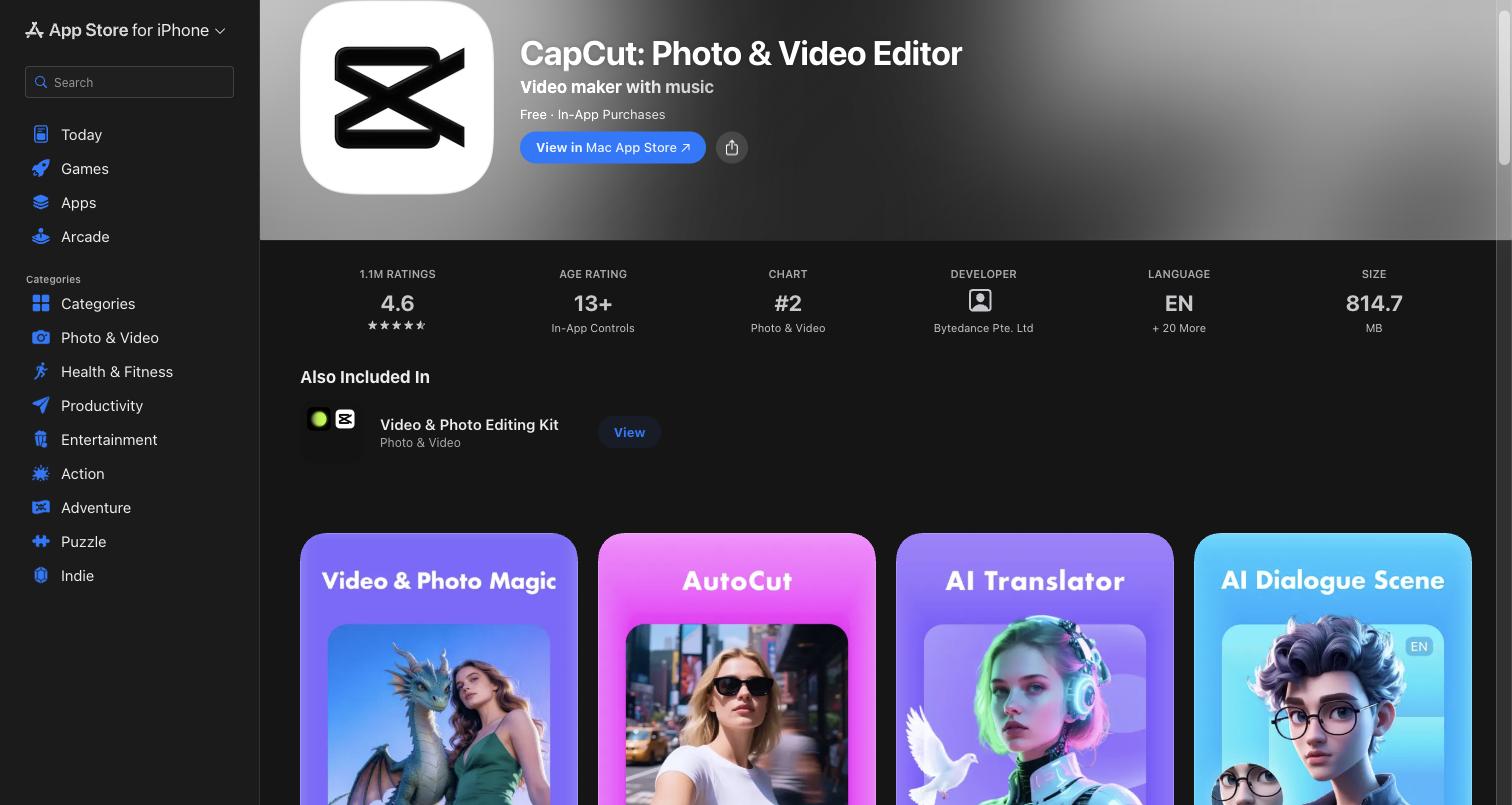
CapCut focuses heavily on accessible editing and short-form content production while offering a growing collection of AI-assisted tools. It is commonly used for social videos where speed, captions, effects, and platform-specific formatting are important.
AI features can assist with tasks such as caption generation, background removal, reframing, audio-related edits, and other common production steps. These features can help creators move quickly from source footage to content prepared for social platforms.
Its timeline also provides conventional editing controls, allowing users to adjust clips, transitions, effects, text, and other elements rather than relying entirely on automatic generation.
CapCut can work well for creators producing frequent short-form videos and social content. Projects requiring extensive color workflows, complex timelines, or highly detailed post-production may call for an editor with a deeper professional toolset.
5. Descript
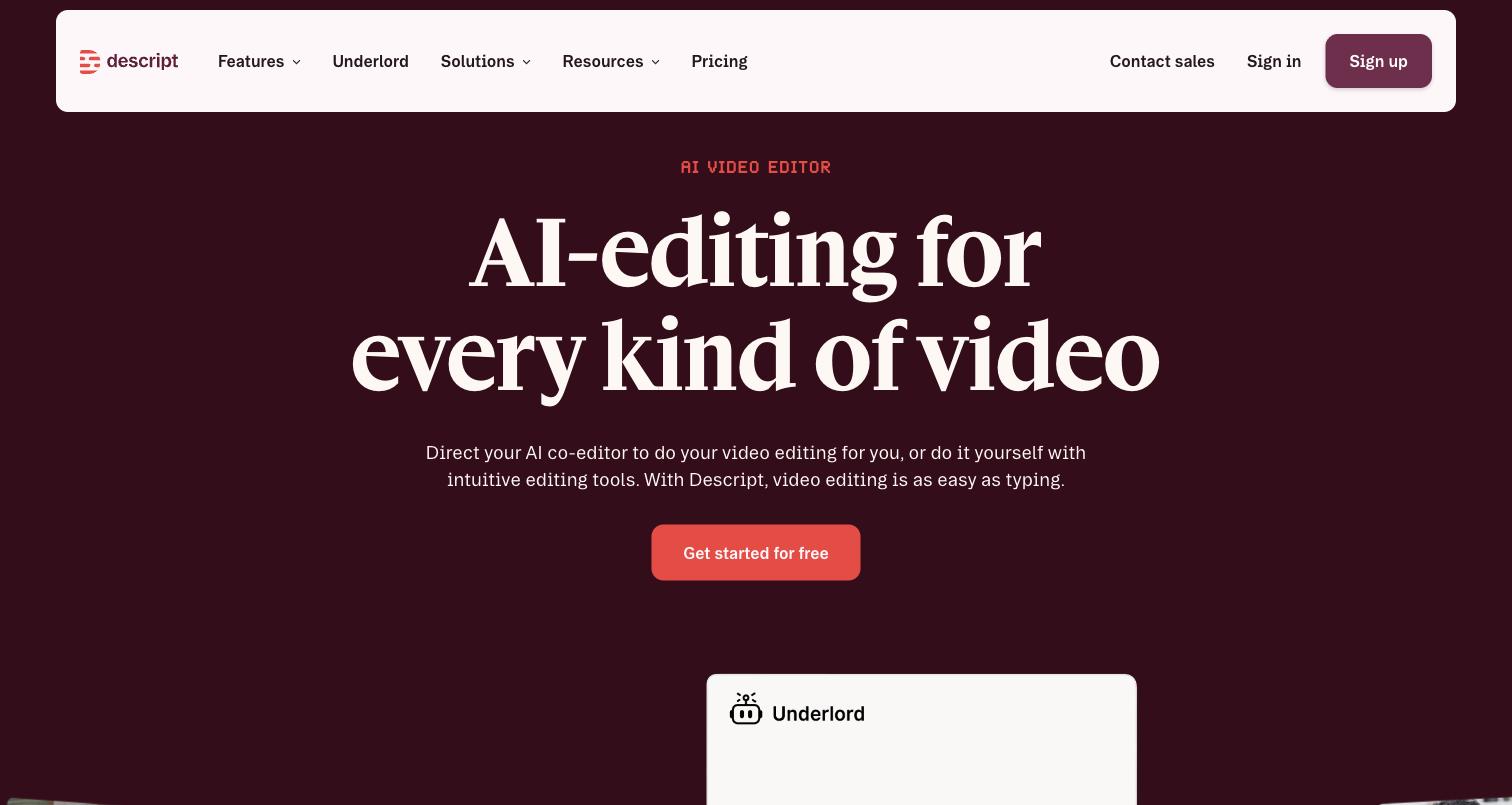
Descript takes a transcript-first approach to video editing. Instead of relying entirely on the traditional timeline, it allows creators to edit spoken content through a text-based interface and then apply those changes to the associated video.
This approach is particularly useful for interviews, podcasts, tutorials, webinars, and talking-head recordings where the spoken word is central to the final edit. Removing a section from the transcript can remove the corresponding section of video as well.
Its AI capabilities support tasks such as transcription, filler-word removal, captions, and other speech-focused editing operations. This can reduce the time required to clean up long recordings and prepare them for publication.
Descript is a practical choice for dialogue-heavy projects where content editing is more important than detailed visual construction. Editors working on complex multicam, cinematic, or highly visual sequences may still need a conventional timeline-based application for more detailed control.
6. Wondershare Filmora

Wondershare Filmora combines a conventional video editing timeline with AI-assisted features aimed at creators who want a relatively accessible production workflow. It supports common editing tasks alongside tools for improving and preparing content.
Its AI features can assist with areas such as text-based editing, audio enhancement, background removal, captioning, and other repetitive editing tasks. Users can also work manually with clips, transitions, effects, titles, and color adjustments.
The combination makes Filmora suitable for creators who need more control than a basic social editing application but do not necessarily require the depth of a full professional post-production suite.
It can be useful for YouTube videos, marketing content, tutorials, and other projects where editing speed and accessibility matter. For more complex productions, it is worth comparing its available audio, color, collaboration, and media-management features against the requirements of the workflow.
How to Use AI Without Losing Creative Control
AI works best in professional editing when it reduces execution time without taking away creative decisions.
For example, an editor can use AI to review several hours of footage and create an initial assembly. The editor can then evaluate the selected takes, change the pacing, replace shots, adjust the structure, and refine the story.
The same principle applies to finishing. AI can help establish a color treatment from a description or reference image, while the editor can manually adjust exposure, contrast, curves, saturation, or individual color ranges.
This approach creates a division of work. AI handles tasks that are repetitive or time-consuming, while the editor remains responsible for decisions that depend on context, taste, performance, and storytelling.
How to Choose the Right AI Video Editor
The right editor depends on the type of work you do and where you spend the most time.
For raw-footage assembly and agent-assisted timeline editing, Invideo editor is worth considering. Premiere Pro and DaVinci Resolve offer deeper traditional post-production environments, with Resolve being particularly strong for detailed color work.
CapCut is oriented toward fast social and short-form production, while Descript is particularly useful for transcript-driven editing and dialogue-heavy content. Filmora provides an accessible combination of traditional editing and AI-assisted tools.
Rather than choosing based only on the number of AI features, consider whether the tool can handle your footage, preserve an editable timeline, and provide the manual controls you need after the AI has completed its work.
Final Takeaway
AI video editors are becoming more useful for professional workflows because they can take on parts of the editing process that previously required significant manual effort. Footage review, assembly, search, transcription, cleanup, color assistance, and versioning can all benefit from automation.
The important distinction is how much control remains with the editor. A useful professional workflow should make it easier to get through repetitive work while keeping the timeline available for creative decisions.
Before choosing a tool, consider the projects you edit most often, the type of footage you receive, and which parts of post-production consume the most time. That will give you a more practical basis for choosing an AI video editor than simply comparing feature lists.